Screen Designs
This section contains screen specifications for the Registration Portal Phase 2. Screens are organized by scope (Common, Membership-specific, Event-specific) and include wireframes, field specifications, and behavior notes.
1. Screen Inventory
| Screen | Scope | Phase | Purpose |
|---|---|---|---|
Landing Page |
Common |
Phase 2 |
Display all events and memberships for tenant |
Identity Selection |
Common |
Phase 2 |
OIDC sign-in or anonymous access choice |
Registration Overview (Membership) |
Membership |
Existing + Phase 2 |
Membership period, member status, person selection |
Registration Overview (Event) |
Event |
Phase 2 |
Event details, participant status, cancellation |
Link Person - Search |
Common |
Existing + Phase 2 |
Search by ID number or DOB |
Link Person - Results |
Common |
Phase 2 |
Masked search results display |
Link Person - Create |
Common |
Existing |
New person creation form |
Registration Questions |
Common |
Existing + Phase 2 |
ProcessDefinition-driven questions |
Payment Selection |
Common |
Phase 2 |
Online vs manual payment choice |
Manual Payment - QR Handoff |
Common |
Phase 2 |
QR code display for staff capture |
Online Payment - Redirect |
Common |
Existing |
Gateway redirect (minimal UI) |
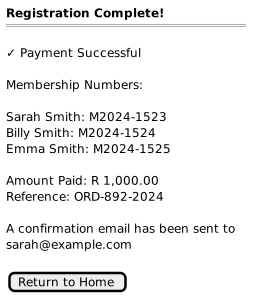
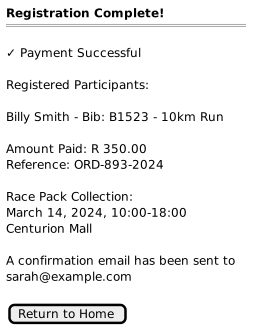
Confirmation |
Common |
Existing |
Success message and summary |
Event Cancellation |
Event |
Phase 2 |
Cancel with refund calculation |
Authentication Failure |
Common |
Phase 2 |
Access denied / auth failure display |
Token Expiry |
Common |
Phase 2 |
Session expired display |
2. Common Screens
2.1. SCR-000: Landing Page
Purpose: Display all available events and membership options for the current tenant.
When Displayed: Optional entry point when no external website directly links to registration.
Not Displayed: When users access registration via external website links with specific event/membership parameters.
Prototype: View Interactive Prototype
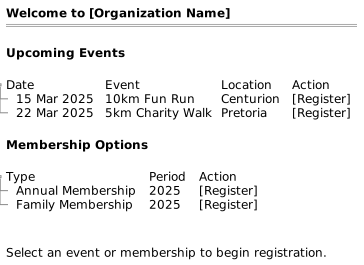
2.1.2. Elements
| Element | Type | Behavior | Required |
|---|---|---|---|
Organization Header |
Heading |
Displays tenant/organization name and branding |
Yes |
Events Panel |
Section |
Lists upcoming events for the tenant |
When events exist |
Event Card |
Card |
Date, name, location with Register button |
Per event |
Membership Panel |
Section |
Lists membership options for the tenant |
When memberships exist |
Membership Card |
Card |
Type, period with Register button |
Per membership type |
Register Button |
Button |
Navigate to Identity Selection (SCR-001) or Registration Overview (SCR-101/SCR-201) |
Per item |
Help Text |
Paragraph |
Guidance for user |
Yes |
2.1.3. Behavior Notes
-
Events displayed are filtered by tenant and current date (not past events)
-
Membership options filtered by tenant and active registration periods
-
Register buttons encode the event/membership ID in the navigation URL
-
If user has an existing session, may skip Identity Selection and proceed to overview
-
Empty panels hidden when tenant has no events or no membership options
2.2. SCR-001: Identity Selection
Purpose: Allow users to authenticate via OIDC or continue anonymously.
When Displayed: Entry point for Event Registration when OIDC is configured.
Not Displayed: Membership Registration (uses hash-based access).
Prototype: View Interactive Prototype
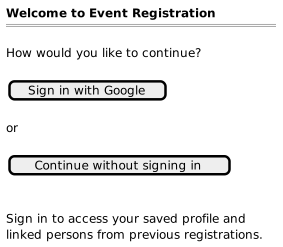
2.2.2. Elements
| Element | Type | Behavior | Required |
|---|---|---|---|
Title |
Heading |
"Welcome to Event Registration" |
Yes |
OIDC Button |
Button |
Redirect to configured identity provider |
When OIDC configured |
Anonymous Button |
Button |
Create anonymous session, proceed to Registration Overview |
Yes |
Help Text |
Paragraph |
Explains benefit of signing in |
Yes |
2.2.3. Behavior Notes
-
OIDC provider name displayed dynamically (e.g., "Sign in with Google")
-
Multiple OIDC providers may be configured (show multiple buttons)
-
Anonymous option always available
-
On successful OIDC auth, redirect to Registration Overview with profile loaded
-
On failed auth, show error message with retry option
2.3. SCR-001A: Authentication Failure
Purpose: Display access denied message when authentication fails.
When Displayed: Hash validation fails, or user accesses protected resource without valid authentication.
Prototype: View Interactive Prototype
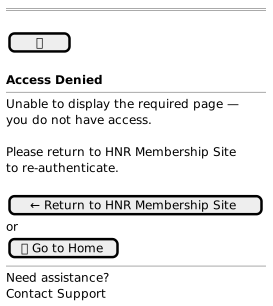
2.3.2. Elements
| Element | Type | Behavior | Required |
|---|---|---|---|
Shield Icon |
Icon (Lucide shield-x) |
Red gradient background circle |
Yes |
Title |
Heading |
"Access Denied" |
Yes |
Message |
Paragraph |
"Unable to display the required page—you do not have access" |
Yes |
Origin Message |
Paragraph |
"Please return to {resetRedirectName} to re-authenticate" |
When origin configured |
Return to Origin Button |
Button (Primary) |
Navigate to resetRedirectUrl |
When origin configured |
Go to Home Button |
Button (Primary or Outline) |
Navigate to landing page |
Yes |
Contact Support Link |
Link |
Opens support contact |
Yes |
2.4. SCR-001B: Token Expiry
Purpose: Display session expired message when JWT token has expired.
When Displayed: Backend returns 401 with X-Token-Expired: true header.
Prototype: View Interactive Prototype
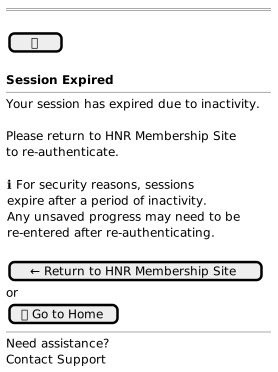
2.4.2. Elements
| Element | Type | Behavior | Required |
|---|---|---|---|
Clock Icon |
Icon (Lucide clock) |
Amber/yellow gradient background circle |
Yes |
Title |
Heading |
"Session Expired" |
Yes |
Message |
Paragraph |
"Your session has expired due to inactivity" |
Yes |
Info Box |
Alert |
Security explanation about session timeout |
Yes |
Origin Message |
Paragraph |
"Please return to {resetRedirectName} to re-authenticate" |
When origin configured |
Return to Origin Button |
Button (Primary) |
Navigate to resetRedirectUrl |
When origin configured |
Go to Home Button |
Button (Primary or Outline) |
Navigate to landing page |
Yes |
Contact Support Link |
Link |
Opens support contact |
Yes |
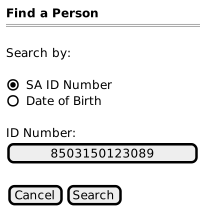
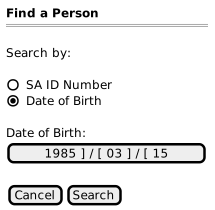
2.5. SCR-002: Link Person - Search
Purpose: Search for existing persons by ID number or date of birth.
When Displayed: User clicks "Add Person" or "Add Family Member" from Registration Overview.
2.5.3. Elements
| Element | Type | Behavior | Required |
|---|---|---|---|
Search Type |
Radio buttons |
Toggle between ID Number and DOB search |
Yes |
ID Number Field |
Text input |
13-digit SA ID validation |
When ID selected |
DOB Fields |
Date picker / dropdowns |
Year → Month → Day selection |
When DOB selected |
Cancel Button |
Button |
Return to Registration Overview |
Yes |
Search Button |
Button |
Execute search, show results or create form |
Yes |
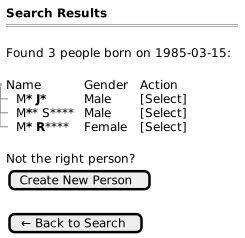
2.6. SCR-003: Link Person - Results (DOB Search)
Purpose: Display masked search results for DOB-based searches.
When Displayed: After DOB search returns matches.
2.6.2. Elements
| Element | Type | Behavior | Required |
|---|---|---|---|
Results Count |
Text |
"Found X people born on [date]" |
Yes |
Results Table |
Table |
Masked name, gender, select action |
Yes |
Masked Name |
Text |
First letter visible, rest masked (e.g., "M* J*") |
Yes |
Gender |
Text |
Full gender displayed |
Yes |
Select Button |
Button |
Navigate to confirmation/linking |
Per row |
Create New Button |
Button |
Navigate to Create Person form |
Yes |
Back Button |
Button |
Return to search form |
Yes |
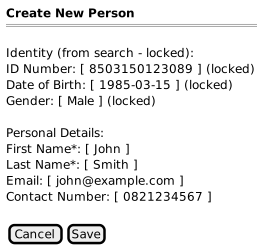
2.7. SCR-004: Link Person - Create
Purpose: Create a new person when no match found.
When Displayed: After search returns no results, or user chooses "Create New Person".
2.7.2. Elements
| Element | Type | Behavior | Required |
|---|---|---|---|
ID Number |
Text (locked) |
Pre-populated from search, not editable |
When ID search |
Date of Birth |
Text (locked) |
Pre-populated from search, not editable |
Yes |
Gender |
Text (locked) |
Auto-derived from ID or selected |
Yes |
First Name |
Text input |
User enters first name |
Yes |
Last Name |
Text input |
User enters last name |
Yes |
Email input |
Optional contact email |
No |
|
Contact Number |
Tel input |
Optional phone number |
No |
Cancel Button |
Button |
Return to search |
Yes |
Save Button |
Button |
Create person, link to profile, return to overview |
Yes |
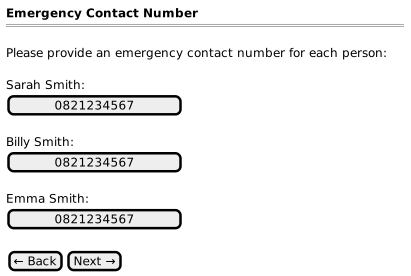
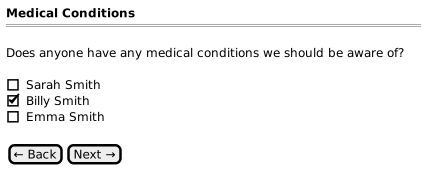
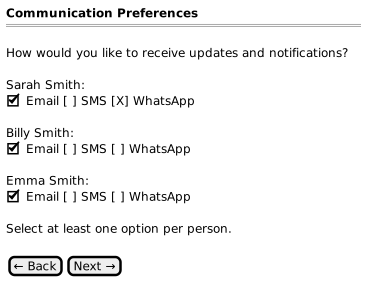
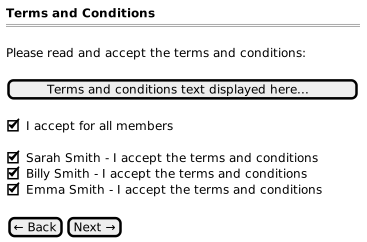
2.8. SCR-005: Registration Questions
Purpose: Display ProcessDefinition-driven questions for all selected persons.
When Displayed: After person selection, during registration workflow.
2.8.5. Question Types Supported
Standard Question Types
| Type | UI Component | Behavior |
|---|---|---|
TXT |
Text input per person |
Free text entry |
NUM |
Number input per person |
Numeric validation |
DRP |
Dropdown per person |
Select from options |
BCB |
Checkbox per person |
Yes/No binary |
ITC |
Master checkbox + individual |
Terms acceptance |
ONE |
Radio buttons (single select) |
Exactly one person selected |
RDO |
Radio per person |
Select option per person |
SEL |
Checkbox group per person |
Multi-select (e.g., comms preference) |
Specialized Question Types (StepCodes)
The following StepCodes represent specialized question types with specific UI patterns:
| StepCode | UI_CODE | UI Component | Behavior | P2 Status |
|---|---|---|---|---|
CSA |
CSA |
Toggle + conditional input |
CSA/UCI license selection: Three-button toggle (CSA Number | UCI Number | None) with conditional text input for license number |
NEW |
MFA |
BCB |
Checkbox per adult |
Family Adult Selection: Select which adults to include in family membership. Shows selection counter (e.g., "2 of 2 valid") |
Existing (P1) |
MFC |
BCB |
Checkbox per child |
Family Child Selection: Select which children to include in family membership. Shows summary of family composition |
Existing (P1) |
MFM |
ONE |
Radio per selected adult |
Family Main Member: Select primary member for family membership. Only shows adults selected in MFA step |
Existing (P1) |
CON |
CON |
Toggle + conditional input |
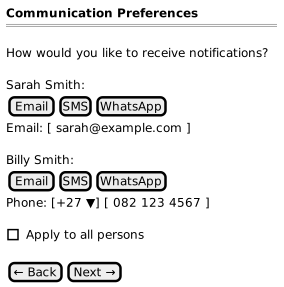
Communication Preference: Three-button toggle (Email | SMS | WhatsApp) with conditional input. Email shows email field; SMS/WhatsApp shows country code dropdown (default: South Africa +27) + phone input. Includes "Apply to all persons" checkbox. Note: Sending communications is deferred; P2 captures and persists preference only. |
NEW |
CON - Communication Preference Detail
Wireframe:
Data Model:
-
Communication TYPE:
EMAIL|SMS|WHATSAPP -
Communication DETAIL: The contact address/number (e.g., "[email protected]" or "+27821234567")
Default Values:
-
Country code defaults to South Africa (+27)
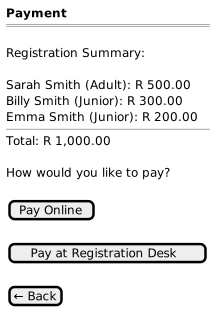
2.9. SCR-006: Payment Selection
Purpose: Allow user to choose between online and manual payment.
When Displayed: After completing registration questions, when manual payment is enabled.
Prototypes:
2.9.2. Elements
| Element | Type | Behavior | Required |
|---|---|---|---|
Summary Table |
List |
Itemized participants and amounts |
Yes |
Total |
Text (bold) |
Sum of all registration fees |
Yes |
Pay Online Button |
Button |
Redirect to WooCommerce gateway |
Yes |
Pay at Desk Button |
Button |
Navigate to QR code screen |
When enabled |
Back Button |
Button |
Return to last question |
Yes |
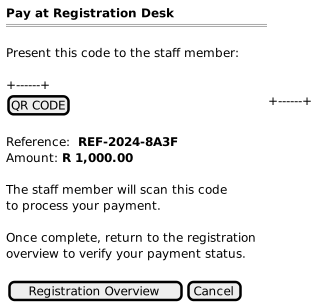
2.10. SCR-007: Manual Payment - QR Handoff
Purpose: Display QR code for staff to capture payment.
When Displayed: After user selects "Pay at Registration Desk".
Prototype: View Interactive Prototype
2.10.2. Elements
| Element | Type | Behavior | Required |
|---|---|---|---|
QR Code |
Image |
Encodes reference number |
Yes |
Reference Number |
Text (bold) |
Unique payment reference |
Yes |
Amount |
Text (bold) |
Total to be paid |
Yes |
Help Text |
Paragraph |
Instructions for user |
Yes |
Registration Overview Button |
Button |
Navigate back to Registration Overview (SCR-101/SCR-201) to check payment status |
Yes |
Cancel Button |
Button |
Cancel registration, return to overview |
Yes |
2.10.3. Behavior Notes
-
No real-time payment awareness - This screen does not poll or receive notifications when payment is processed
-
User must click "Registration Overview" button to return and check their payment status
-
Payment status is only visible when the user views the Registration Overview screen
-
The registration remains in "Pending Payment" state until staff processes the payment via the staff capture system
3. Membership-Specific Screens
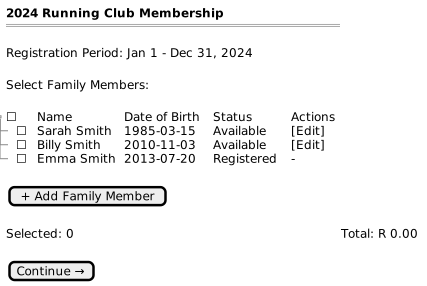
3.1. SCR-101: Registration Overview (Membership)
Purpose: Display membership period details, member status, and person selection.
When Displayed: Entry point for Membership Registration after hash validation.
Prototype: View Interactive Prototype
3.1.2. Elements
| Element | Type | Behavior | Required |
|---|---|---|---|
Membership Title |
Heading |
Membership type and period name |
Yes |
Registration Period |
Text |
Open/close dates |
Yes |
Person Table |
Table |
Checkbox, name, DOB, status, actions |
Yes |
Status Column |
Badge |
Available, Registered, Pending Payment |
Yes |
Edit Action |
Button |
Navigate to edit person (if permitted) |
When editable |
Add Person Button |
Button |
Navigate to Link Person search |
Yes |
Selection Summary |
Text |
Count and calculated total |
Yes |
Continue Button |
Button |
Proceed to Registration Details (questions) |
Yes |
4. Event-Specific Screens
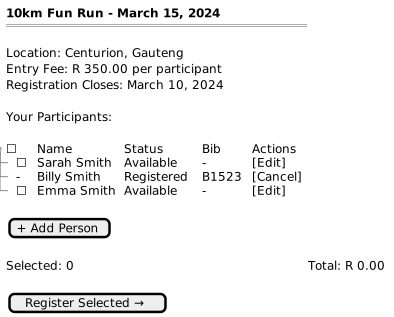
4.1. SCR-201: Registration Overview (Event)
Purpose: Display event details, participant status, and actions including cancellation.
When Displayed: Entry point for Event Registration.
Prototype: View Interactive Prototype
4.1.2. Elements
| Element | Type | Behavior | Required |
|---|---|---|---|
Event Title |
Heading |
Event name and date |
Yes |
Event Details |
Text |
Location, fee, close date |
Yes |
Participant Table |
Table |
Checkbox, name, status, bib, actions |
Yes |
Bib Number |
Text |
Assigned bib for registered participants |
When registered |
Cancel Action |
Button |
Navigate to cancellation flow |
When registered by current user |
Add Person Button |
Button |
Navigate to Link Person search |
Yes |
Selection Summary |
Text |
Count and calculated total |
Yes |
Register Button |
Button |
Proceed to Registration Details |
Yes |
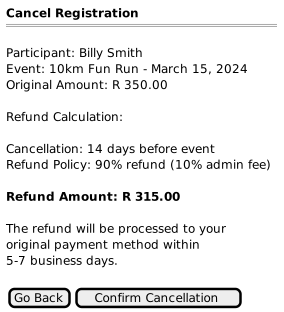
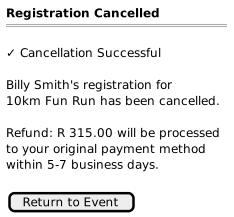
4.2. SCR-202: Event Cancellation
Purpose: Display cancellation details and refund calculation.
When Displayed: User clicks "Cancel" for a registered participant.
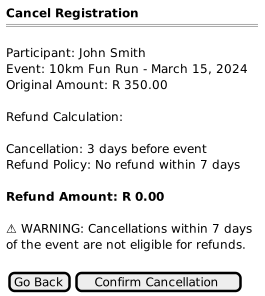
4.2.3. Elements
| Element | Type | Behavior | Required |
|---|---|---|---|
Participant Name |
Text |
Person being cancelled |
Yes |
Event Details |
Text |
Event name and date |
Yes |
Original Amount |
Text |
Amount originally paid |
Yes |
Days Until Event |
Text |
Calculated from current date |
Yes |
Refund Policy |
Text |
Applicable rule |
Yes |
Refund Amount |
Text (bold) |
Calculated refund |
Yes |
Warning |
Alert |
Shown when no refund |
When <7 days |
Go Back Button |
Button |
Return to Event Overview |
Yes |
Confirm Button |
Button |
Process cancellation |
Yes |
5. Responsive Design Requirements
6. Accessibility Requirements
-
WCAG 2.1 AA Compliance required
-
Keyboard Navigation - All actions accessible via keyboard
-
Screen Reader Support - Proper ARIA labels and landmarks
-
Color Contrast - Minimum 4.5:1 for normal text
-
Focus Indicators - Visible focus states on all interactive elements
-
Error Messages - Associated with form fields, announced to screen readers
7. Interactive UI Prototypes
The following interactive HTML prototypes demonstrate the visual design and interaction patterns for Phase 2 screens.
| Screen | Description | Prototype |
|---|---|---|
Identity Selection |
SCR-001: OIDC sign-in or anonymous access choice |
|
Authentication Failure |
SCR-001A: Access denied when authentication fails |
|
Token Expiry |
SCR-001B: Session expired when JWT token expires |
|
Landing Page |
Generic landing page with events and membership panels |
|
Registration Overview (Membership) |
SCR-101: Membership period, member status, person selection |
|
Registration Overview (Event) |
SCR-201: Event details, participant status, registration |
|
Payment Selection (Membership) |
SCR-006: Order summary and payment method choice |
|
Payment Selection (Event) |
SCR-006: Event order summary with individual line items |
|
Manual Payment - QR Handoff |
SCR-007: QR code display for staff capture |
|
Question - Text Input |
SCR-005: Text input question (e.g., Emergency Contact) |
|
Question - Checkbox |
SCR-005: Binary checkbox question |
|
Question - Dropdown |
SCR-005: Dropdown selection question |
|
Question - Dropdown (Club) |
SCR-005: Club selection dropdown variant |
|
Question - Dropdown (Region) |
SCR-005: Region selection dropdown variant |
|
Question - Dropdown (School) |
SCR-005: School selection dropdown variant |
|
Question - Dropdown (T-shirt Size) |
SCR-005: T-shirt size selection dropdown variant |
|
Question - Radio (Single Selection) |
SCR-005: Radio button single selection (ONE type) |
|
Question - Terms & Conditions |
SCR-005: Terms acceptance (ITC type) |
|
Question - CSA License |
SCR-005: CSA/UCI license selection (CSA StepCode) |
|
Question - Communication Preference |
SCR-005: Email/SMS/WhatsApp selection (CON StepCode) |
|
Question - Family Adult Selection |
SCR-005: Select adults for family membership (MFA StepCode) |
|
Question - Family Child Selection |
SCR-005: Select children for family membership (MFC StepCode) |
|
Question - Family Main Member |
SCR-005: Select primary family member (MFM StepCode) |
|
Question - Emergency Contact |
SCR-005: Multi-field contact capture |
| These prototypes are interactive HTML files with JavaScript for demonstration purposes. Click through the flows to experience the intended user journey. |
8. Phase 2 Changes Summary
This section summarizes the changes made in Phase 2 for reference when creating ADO tickets.
8.1. New Screens
| Screen | Description | Status |
|---|---|---|
SCR-000: Landing Page |
Display all events and memberships for a tenant |
NEW - P2 implementation required |
SCR-001A: Authentication Failure |
Display access denied for failed hash authentication |
NEW - P2 implementation required |
SCR-001B: Token Expiry |
Display session expired for expired JWT tokens |
NEW - P2 implementation required |
8.2. New Question StepCodes
| StepCode | UI_CODE | Description | Status |
|---|---|---|---|
CSA |
CSA |
CSA/UCI license selection with conditional input |
NEW - P2 implementation required |
CON |
CON |
Communication preference capture (Email/SMS/WhatsApp with contact details) |
NEW - P2 implementation required (sending deferred) |
8.3. Documentation-Only Updates (Existing P1 Implementations)
| StepCode | UI_CODE | Description |
|---|---|---|
MFA |
BCB |
Family Adult Selection - now documented |
MFC |
BCB |
Family Child Selection - now documented |
MFM |
ONE |
Family Main Member Selection - now documented |
8.4. Screen Behavior Updates
| Screen | Change |
|---|---|
SCR-007 |
Removed real-time payment polling. User returns to Registration Overview to check payment status. |
8.5. Key Design Decisions
-
CON Communication Preference: UI capture and data persistence in P2 scope; sending actual communications deferred to later phase
-
Default Country Code: South Africa (+27) is the default for phone number capture
-
Manual Payment Flow: No real-time payment notification; user navigates to Registration Overview to verify status